Overview
Ghost Frame is a browser-based image effects studio. You drop in a photo, pick one of 30 effects, adjust two sliders, and download the result. No account needed to use it. No app to install. No server processing your image - everything runs in your browser through the Canvas API.
I designed and built the entire thing. The design, the code, the architecture decisions - all of it. I used Claude Code as a development partner throughout, which I'll be honest about in this write-up.
My Role
I was the only person on this project. I made every decision - from the information architecture to the pixel-level effect algorithms. I designed the interface, wrote the HTML and CSS, implemented the JavaScript effects, set up the Supabase backend, and deployed it to Vercel.
Claude Code helped me write and debug code. I directed it, reviewed everything it produced, and made all the product decisions. Think of it like pair programming where I'm driving.
Timeline
I built Ghost Frame over roughly two months. Most of that time was figuring out the right architecture - I started with a Python FastAPI backend and ended up throwing it away entirely. The actual design went through two distinct phases: the landing page first, then the editor.
The Problem I Was Solving
Photo editing tools are either too powerful or too simple. Photoshop requires real investment to learn. Instagram filters are too limited - you're choosing from someone else's presets with no control. There's a gap in the middle for people who want interesting, distinctive results without a learning curve.
Ghost Frame sits in that gap. You come with an image, you leave with something that looks intentional - a halftone poster, a glitch effect, a heat map render. The effort is low. The result doesn't look accidental.
The secondary problem: most tools like this require a backend. They process your image on a server, which means latency, cost, and privacy tradeoffs. I wanted everything to run client-side.
What Ghost Frame Actually Does
The product has seven pages.
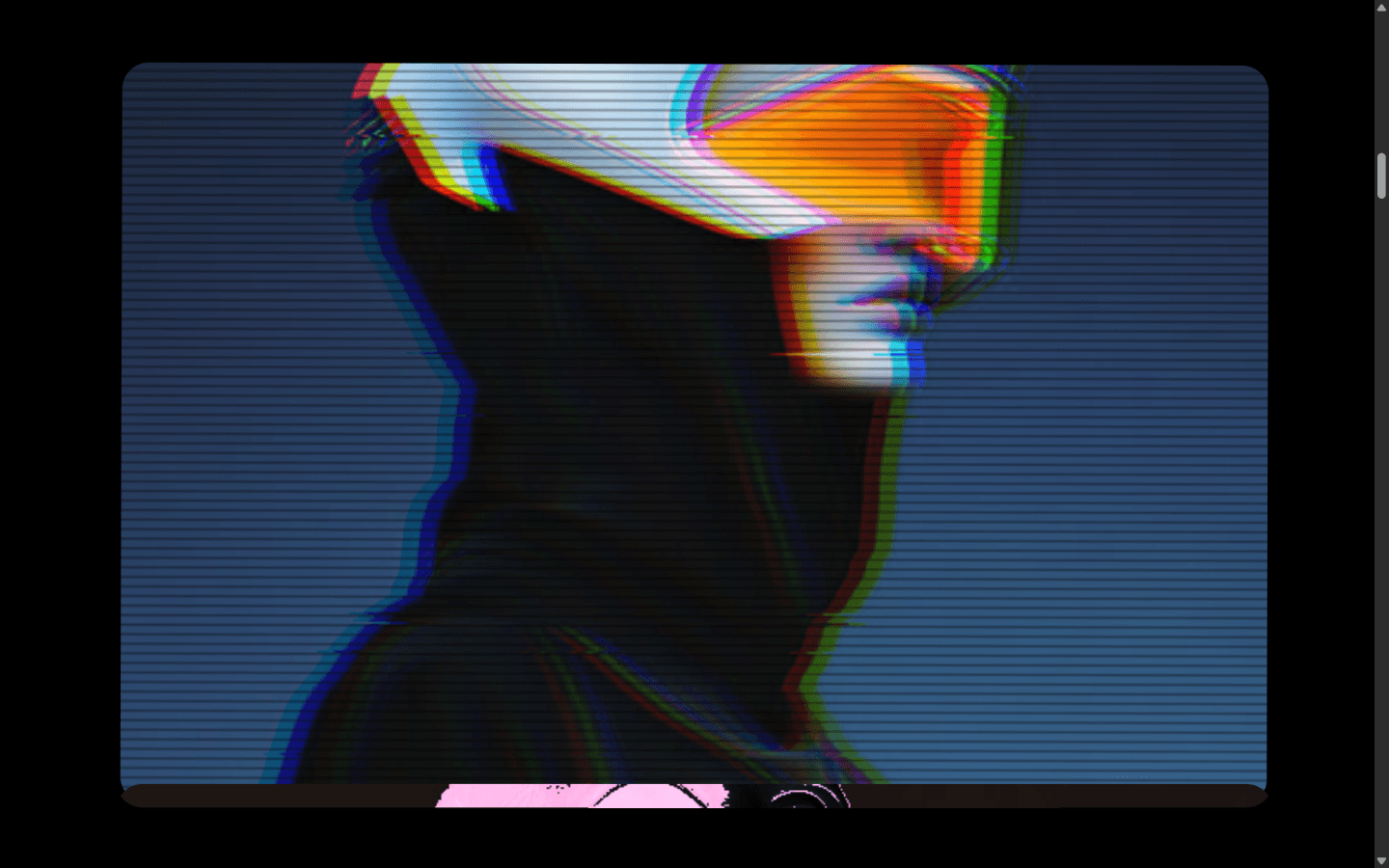
Landing - explains what Ghost Frame is through demos and a before/after comparison. Sells the effects visually before asking anything of the user.
Effects - a browsable gallery of all 30 effects, organized by category. Each card animates on hover to show what the effect looks like. Links directly into the editor with that effect pre-selected.
Editor - the main tool. Drop an image, pick an effect, adjust the sliders, download or save.
Projects - a personal library of saved exports. Requires an account.
Discover - a public feed of images other users have shared. Requires an account to post.
Login/Signup - standard auth flow via Supabase.
Privacy/Terms - legal pages.
The Architecture Decision That Changed Everything
I started with a Python FastAPI backend on Render. The idea was that image effects would run server-side - more powerful, easier to implement in Python with PIL and NumPy.
Three problems killed that approach.
Cost. A backend that stays running costs money. A backend that scales costs more.
Latency. Every effect required a round-trip to the server. Upload the image, wait for processing, download the result. For something meant to feel immediate and exploratory, that friction was wrong.
Deployment complexity. A static frontend plus a separate backend means two deployments, two environments, two things that can break.
The fix was to move everything to the browser. The Canvas API gives you direct pixel access. You can implement every image effect I wanted - grain, halftone, RGB shift, duotone, posterize - as pure JavaScript that runs at 60fps on the user's machine.
The only exception was background removal, which genuinely requires a neural network. I solved that with a Vercel Edge Function that proxies the remove.bg API. The API key lives on the server. The user never sees it.
Result: a fully static site deployed on Vercel. No server to maintain. No cost at scale. Instant effect preview.
Information Architecture
The IA has two modes: discovery and creation.
Discovery mode is the landing page and the effects page. The user is figuring out what Ghost Frame does and whether it's worth their time. The job of these pages is to show, not tell.
Creation mode is the editor. Once the user has committed - they've dropped in an image - the IA collapses down to one focused screen.
The navigation is minimal on purpose. Logo on the left, four links on the right: Effects, Discover, Projects, and a Sign In button if logged out. That's it. There's no settings page, no onboarding flow, no dashboard.
I made a deliberate choice to keep Projects and Discover behind auth while the editor is completely free. The reasoning: making someone create an account before they've seen what the tool does is bad conversion. Let them play first. The account value proposition becomes clear after they've made something they want to keep.
Design System
Ghost Frame uses one typeface: Syne. It's the right choice for this product - geometric, slightly unusual, technical without feeling corporate. It has weight and presence at large sizes and stays readable small.
The color system is almost entirely black and white.
- Background: #000000
- Primary text: #ffffff
- Secondary text: rgba(255, 255, 255, 0.6)
- Tertiary text and labels: rgba(255, 255, 255, 0.4)
- UI surfaces: rgba(255, 255, 255, 0.04) to rgba(255, 255, 255, 0.08)
- Borders: rgba(255, 255, 255, 0.1)
The monochrome palette does something useful for an effects tool: it gets out of the way of the image. Whatever photo you bring in, whatever effect you apply, the interface doesn't compete. The image is always the most colorful thing on screen.
No accent color. The few interactive states that need emphasis use white at higher opacity - selected states, hover states, the export button. Pure white on black reads clearly without adding a hue.
Typography scale uses clamp() throughout for fluid responsive sizing. The hero headline on the landing page scales from roughly 40px on mobile to 80px on desktop without any breakpoint math.
Landing Page Design
The landing page has six distinct sections. I'll walk through each one and explain the decision behind it.
Preloader
A stairs animation - 10 vertical strips that slide in from left to right before the page content loads. This is partially decorative and partially functional: it buys time for the GSAP library and fonts to load without showing a flash of unstyled content.
The strip animation references the kind of manual print process - masked reveals, sequential exposures - that Ghost Frame's effects evoke. It's not random.
Hero
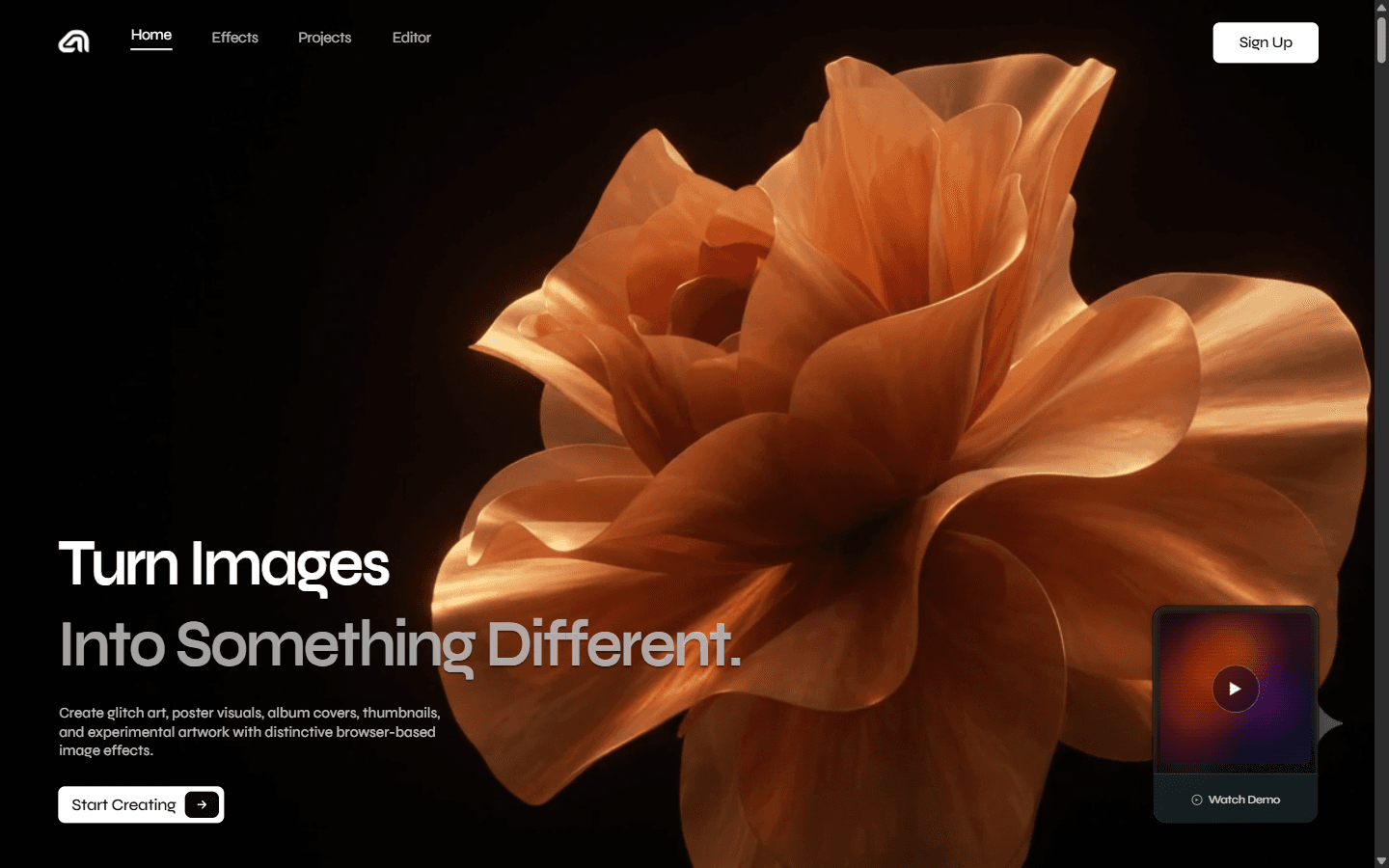
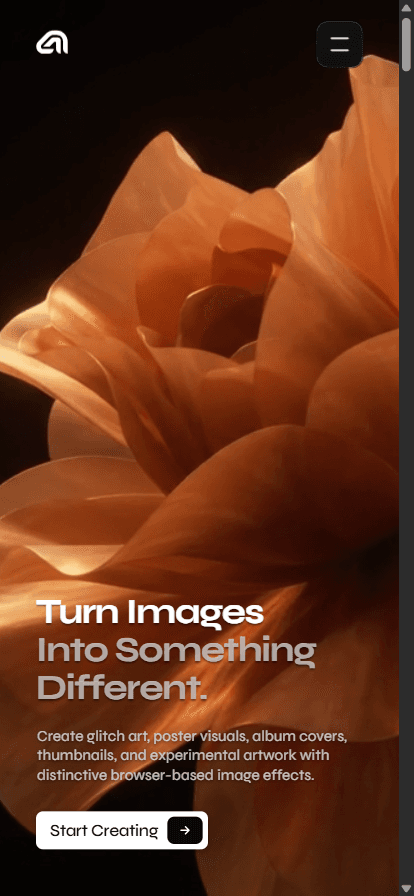
The hero has a video background and two pieces of text: "Turn Images Into Something Different" as the headline and a short descriptor below it. A demo card shows before and after switching.
The video is muted and autoplays. It shows processed images in sequence. The job of this section is immediate - within two seconds, a visitor who has never heard of Ghost Frame should understand that this is a creative tool for images. No text explanation needed if the video is doing its job.
What This Does Statement
A single sentence, large, centered: explaining the core value proposition plainly. This breaks a pattern I see in a lot of landing pages where the about text is three paragraphs of marketing language. I wanted one honest sentence.
Sticky Outcome Strip
Six effect cards that scroll horizontally while the section header stays sticky. Each card shows an example image with an effect applied. The scroll behavior is GSAP-driven - cards slide horizontally as the user scrolls vertically.
This section answers the question "what kind of effects are we talking about?" with images rather than a bullet list. Names don't mean anything until you see them.
Parallax Gallery
A four-column grid where the columns scroll at different speeds. This creates visual depth - some images appear to move faster than others as you scroll, giving a sense of layers. Pure CSS for the column structure, GSAP for the parallax offsets.
Before After Slider
A comparison slider showing an original photo and a processed version. Drag left or right to reveal the original. Implemented with CSS clip-path - the original image is absolutely positioned underneath, and the processed version has a clip-path that updates on mouse drag.
This is the landing page's clearest demonstration of what the product does. It's interactive, which makes it more memorable than a static comparison image.
Features Carousel
A 3D rotating carousel with three feature cards ("Your Image. Reinvented." as the headline). The cards rotate on a 3D Y-axis. I used perspective and transform-style: preserve-3d for this - no library.
How It Works
A 2x2 grid with four steps: Drop Your Image, Choose an Effect, Adjust the Sliders, Download or Save. Each cell has a large number, a title, and two lines of description.
I kept this section short because the product genuinely is simple to use. A ten-step how-it-works section would be dishonest.
Effects Page Design
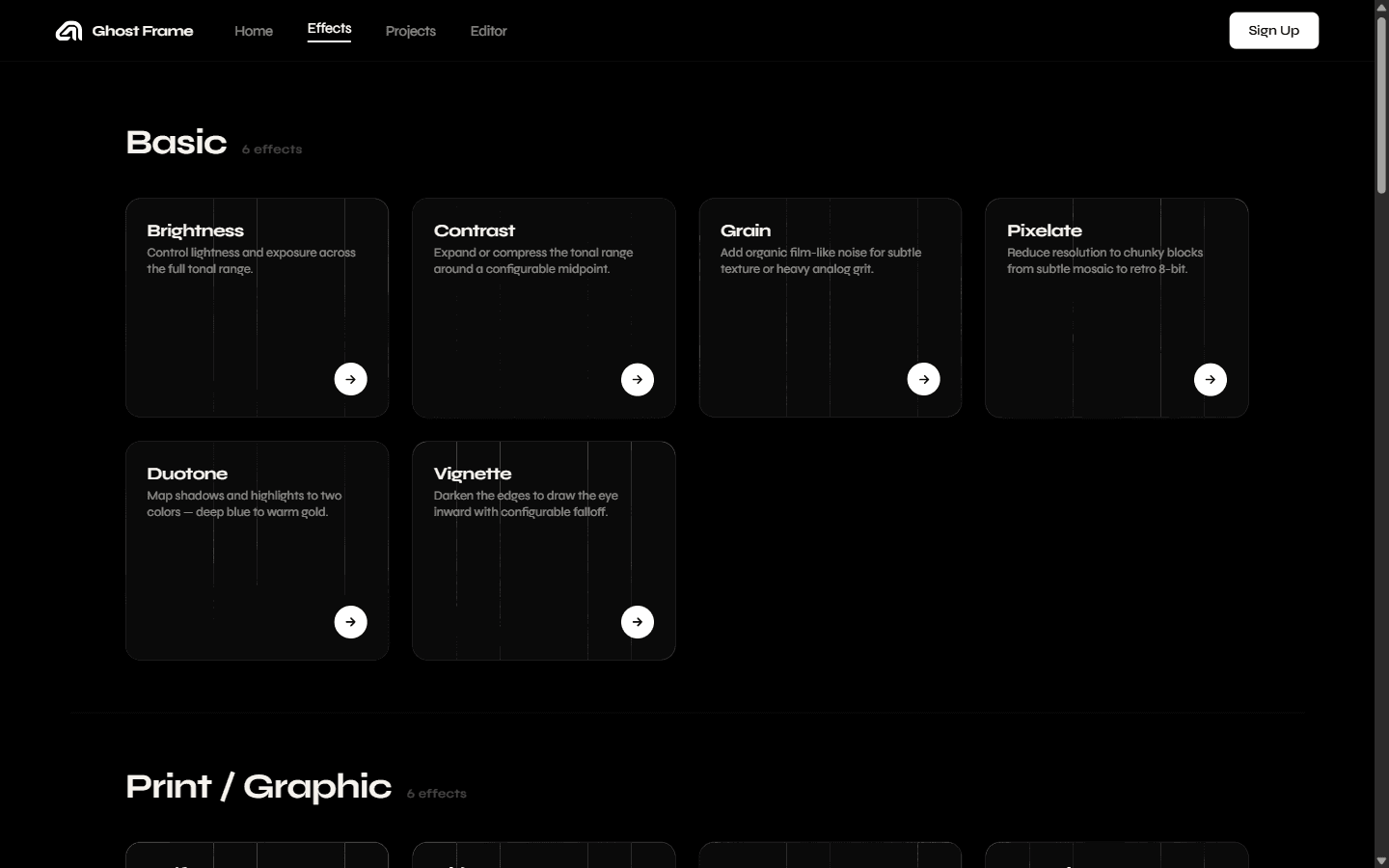
The effects page is a grid of cards, one per effect. The card design is the most distinctive thing on the page.
Each card is divided into six horizontal strips (CSS grid, grid-template-rows: repeat(6, 1fr)). On hover, the strips animate out - they scale down on the Y axis, one after another with a staggered delay, revealing the underlying effect image and a title and arrow link.
I call this the blinds animation. It's a reveal rather than a fade, which feels more deliberate. The stagger makes it feel mechanical - like a physical shutter opening.
The effects are organized into categories: Basic, Print/Graphic, Glitch/Distortion, Glass, Signature, AI. The category labels act as section headers in the grid.
Editor UX
The editor is the hardest part of this product to get right. It needs to be powerful enough to be useful but simple enough that a first-time user can get a result in under a minute.
Layout
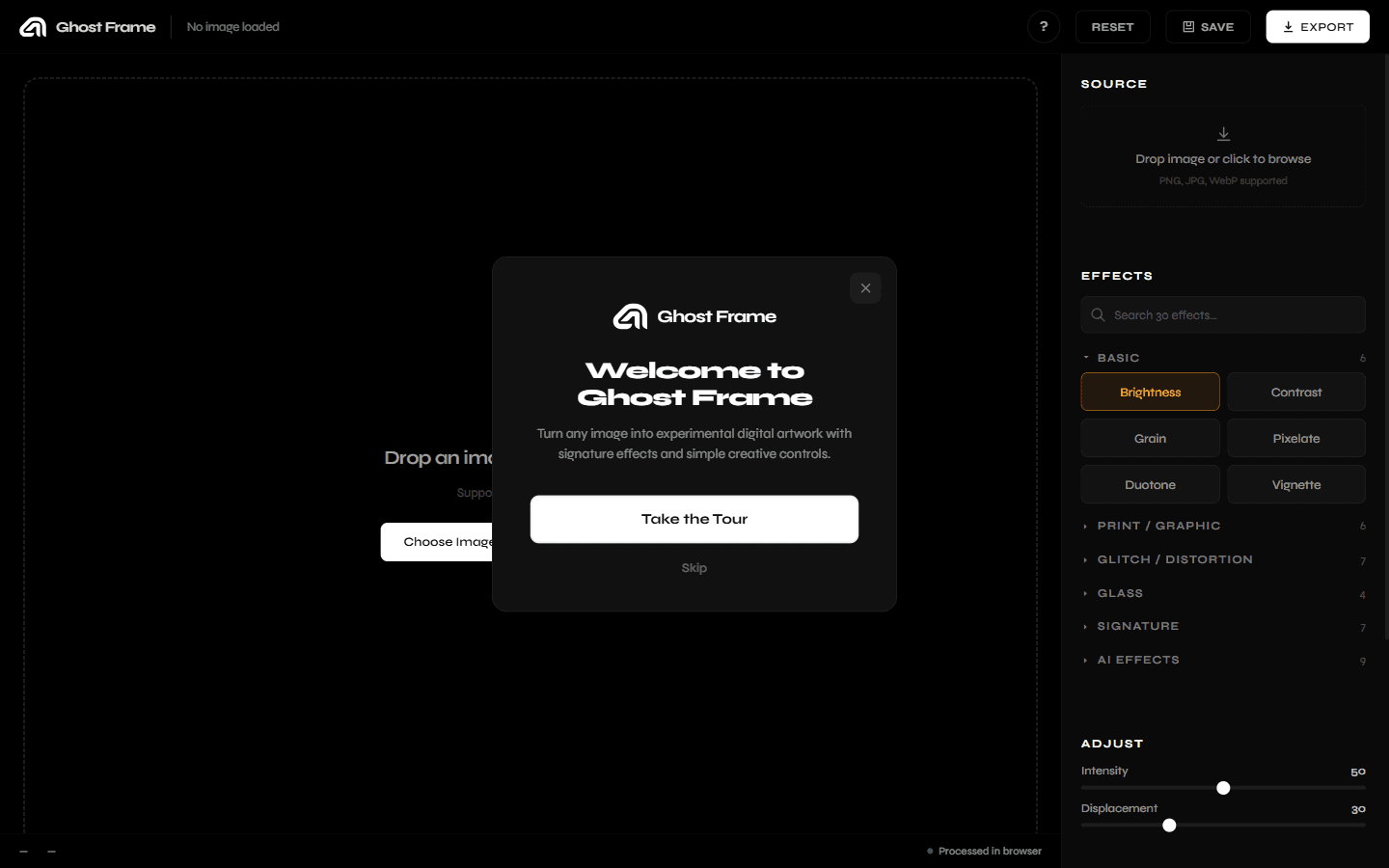
Fixed 56px topbar with: logo on the left, filename display in the center, Reset / Save / Export buttons on the right. Below that: a three-column layout. Center: canvas area, takes up most of the screen. Right: 340px sidebar.
The canvas is center-focused. This is important - when you're evaluating an image effect, you want the image to be as large as possible and centered in your visual field. Putting the canvas on the left and the controls on the right feels like a productivity tool. Centering it feels like a creative one.
Drop Zone
The canvas area starts as a drop zone with a dashed border and upload instructions. Once an image is loaded, it becomes the canvas. A "Show Original" toggle button appears at the bottom - hold it to compare against the unprocessed version.
Sidebar: Source
At the top of the sidebar, a compact source area lets you replace or clear the current image.
Sidebar: Effects
This is the most complex part of the sidebar. I went through two iterations.
First iteration: a flat grid of all effects. Simple, but with 30 effects it becomes a long scroll with no organization.
Second iteration: collapsible categories. Six categories, each with a header you can click to expand or collapse. Basic is open by default (the most common entry point). Everything else starts collapsed. A search input filters across all categories in real time.
The progressive disclosure matters here. If all 30 effects are visible at once, the user has to scan everything to find what they want. If categories are collapsed, they can navigate by category type (I want a distortion effect, not a color effect) and then expand.
Sidebar: Adjust
Two sliders for every effect.
- Intensity - universal across all effects. 0 to 100, controls how strongly the effect is applied. At 0, it's the original image. At 100, full effect.
- A unique second parameter - different for each effect. For Halftone, it's Dot Size. For RGB Shift, it's Displacement. For Grain, it's Grain Amount.
Two sliders is the right number. One slider is too coarse - Intensity alone doesn't give you enough control. Three sliders is too many - most effects don't have three independent meaningful dimensions. Two keeps it learnable: you always know what the controls are before you even look at the sidebar.
Sidebar: Presets
Four preset buttons - Subtle, Medium, Heavy, Random - that set both sliders to preset values for the current effect. Quick starting points.
Sidebar: Export
A format selector (PNG, JPEG, WEBP) and an Export button. Export always works, no auth required. Download is free.
Save goes to the user's Projects library and requires an account. The Save button is always visible but shows a sign-in prompt when clicked without a session. I specifically chose not to hide the Save button from logged-out users - hiding it makes the feature invisible. Showing it and then prompting to sign up is a better conversion point because the user has already decided they want to save something.
Status Bar
A 36px strip at the bottom of the editor shows the current image dimensions and the active effect name. No interaction - just context.
AI Processing Overlay
When the Remove Background effect is running, a full-canvas overlay shows a progress indicator. Background removal requires a network call to the Edge Function so it takes a few seconds. The overlay prevents interaction during processing and communicates that something is happening.
The 30 Effects
Six categories cover the full range.
Basic (6): Brightness, Contrast, Grain, Pixelate, Duotone, Blur.
Print and Graphic (6): Halftone, Dither, ASCII, Posterize, Threshold, Vignette.
Glitch and Distortion (7): RGB Shift, VHS, CRT, Pixel Sort, Chromatic Aberration, Scan Lines, Static.
Glass (4): Liquid Glass, Prism Glass, Frosted Glass, Refraction.
Signature (5): Data Ghost, Heat Signal, Fragment, Infrared, Neon.
AI (2): Remove Background, Enhance.
Every effect is implemented as a Canvas API pixel manipulation function. The function takes source pixel data and writes to output pixel data. The two sliders map to intensity (0 to 1) and a second parameter (0 to 1) specific to that effect.
Responsive Design
The landing page is fully responsive using clamp() for all text sizing and fluid grid layouts. The nav collapses to a hamburger at mobile widths.
The editor is desktop-first by design. A two-column layout with a fixed sidebar doesn't translate naturally to mobile. On smaller screens, the sidebar moves below the canvas. This isn't ideal - the experience is better on desktop - but it functions without breaking.
The effects page and other content pages are fully responsive.
The Python Backend Decision (and Why I Abandoned It)
This deserves its own section because it was the biggest technical decision of the project.
I started with Python. FastAPI backend, PIL for image processing, deployed to Render. The architecture made sense on paper: keep the heavy processing server-side, serve a lightweight frontend.
In practice, it was slow. Upload an image, wait 2 to 3 seconds for a round-trip, get a result. For an exploratory tool where you're supposed to try effects quickly, that latency kills the experience. The whole point of "adjust the sliders and see what happens" breaks if each slider move requires a network request.
The Canvas API solution runs at interactive speeds - you can drag a slider and the effect updates in real time, frame by frame. That's only possible client-side.
The trade-off: Canvas API effects require JavaScript implementations of every algorithm. I had to write pixel-by-pixel halftone, dithering, and distortion code in JavaScript rather than using Python's mature image processing libraries. That took longer to build. But the result is better for users.
The only effect that genuinely can't run client-side is background removal - it requires a trained neural network. That's the one place the Edge Function is justified.
The Auth Strategy
Ghost Frame uses Supabase for authentication, database, and storage. The decision to use Supabase directly from the browser (rather than through a backend) simplified the architecture significantly.
The Supabase JS client handles auth state, row-level security enforces data isolation between users, and storage is used for saving exported images. No backend needed for any of this.
Row-level security means I don't have to write server-side authorization logic. The database refuses queries that try to access another user's data at the row level. This is the right approach for a project without a dedicated backend.
Decisions I'd Revisit
The editor's mobile experience. I didn't prioritize it enough. The desktop experience is strong, but the mobile layout is a fallback, not a design. If I were building Ghost Frame again, I'd either design mobile-first or explicitly position the product as desktop-only and not pretend otherwise.
No undo. There's no undo history in the editor. You can reset to the original with the Reset button, but you can't step back through effect changes. For v1 this was acceptable, but it's a real friction point when you're exploring.
The Discover page. I built the infrastructure for it - Supabase tables, the API client, the UI - but the discovery experience is underdeveloped. It's a grid of user-submitted images with likes. There's no curation, no trending, no filtering that's genuinely useful. It needs more work to be valuable.
What I'm Proud Of
The before/after slider. It's implemented cleanly with CSS clip-path and feels satisfying to use. No library, no canvas tricks - just a clip path updated on pointer events.
The blinds card animation on the effects page. This is purely decorative but it makes the effects page feel alive. Every effect card has personality on hover.
The Basic-open, everything-else-collapsed default. This small decision makes the editor sidebar feel approachable on first load. You see five effects. You pick one. You don't feel like you need to understand all 30 before you start.
The preloader. The stairs animation is 40 lines of CSS and a small JS trigger. It makes the landing page feel like someone thought about it - not just in terms of content, but in terms of the experience of arriving.
Zero backend for effects. This is the thing I'm most technically proud of. A full image effects studio that processes in real time, locally, with no server. The remove.bg integration is the only network call, and it's behind an Edge Function that the user doesn't need to think about.
The Role of AI-Assisted Development
I want to be straightforward about this because it's relevant to understanding how the project was built.
Claude Code wrote a significant amount of the code in this project. Not as a passive autocomplete, but as an active pair: I'd describe what I wanted, it would implement it, I'd review and redirect, we'd iterate. The Canvas API effect functions in particular involved a lot of back-and-forth - getting the math right for halftone dot sizing or RGB channel displacement takes iteration.
My contributions as the designer.
- Every product decision - what to build, what not to build, the UX model, the auth strategy.
- The visual design - palette, typography, layout, motion.
- The information architecture.
- Reviewing and correcting generated code.
- All the hard redirects when the architecture was wrong - like abandoning the Python backend.
What AI-assisted development changes: the gap between design intent and working implementation shrinks significantly. I could sketch an interaction in words and have working code to test within minutes, which meant more design iterations, not fewer. The GSAP scroll effects on the landing page were redesigned three times because the cost of trying a new approach was low.
What it doesn't change: the product thinking, the visual judgment, the architectural decisions. Those are still design work.
Reflection
Ghost Frame is a complete, deployable product. It works. The effects run fast. The design is coherent. The landing page sells it well.
The things that would make it meaningfully better are on the discovery and social side - the Discover page needs curation, the effects page needs better filtering, the editor needs undo. Those are v2 problems.
As a case study, what I want this to show is: I can take a product from zero to shipped. I made the hard architectural call (throw away the Python backend) at the right time, not after it was too late to change. I designed a UI that has genuine personality - the blinds animation, the stairs preloader, the centered canvas - not just a functional layout. And I can build the thing I design.