Overview
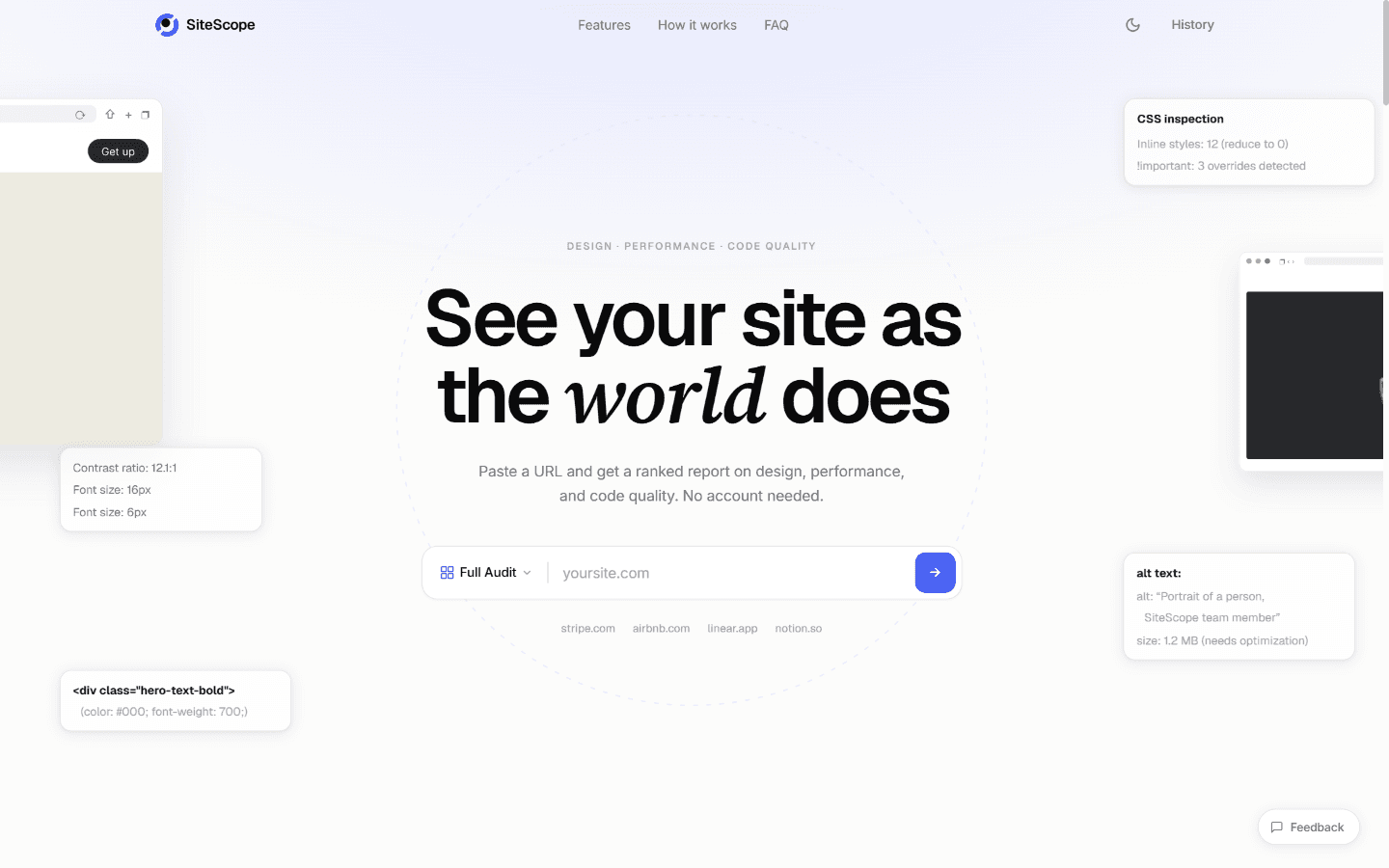
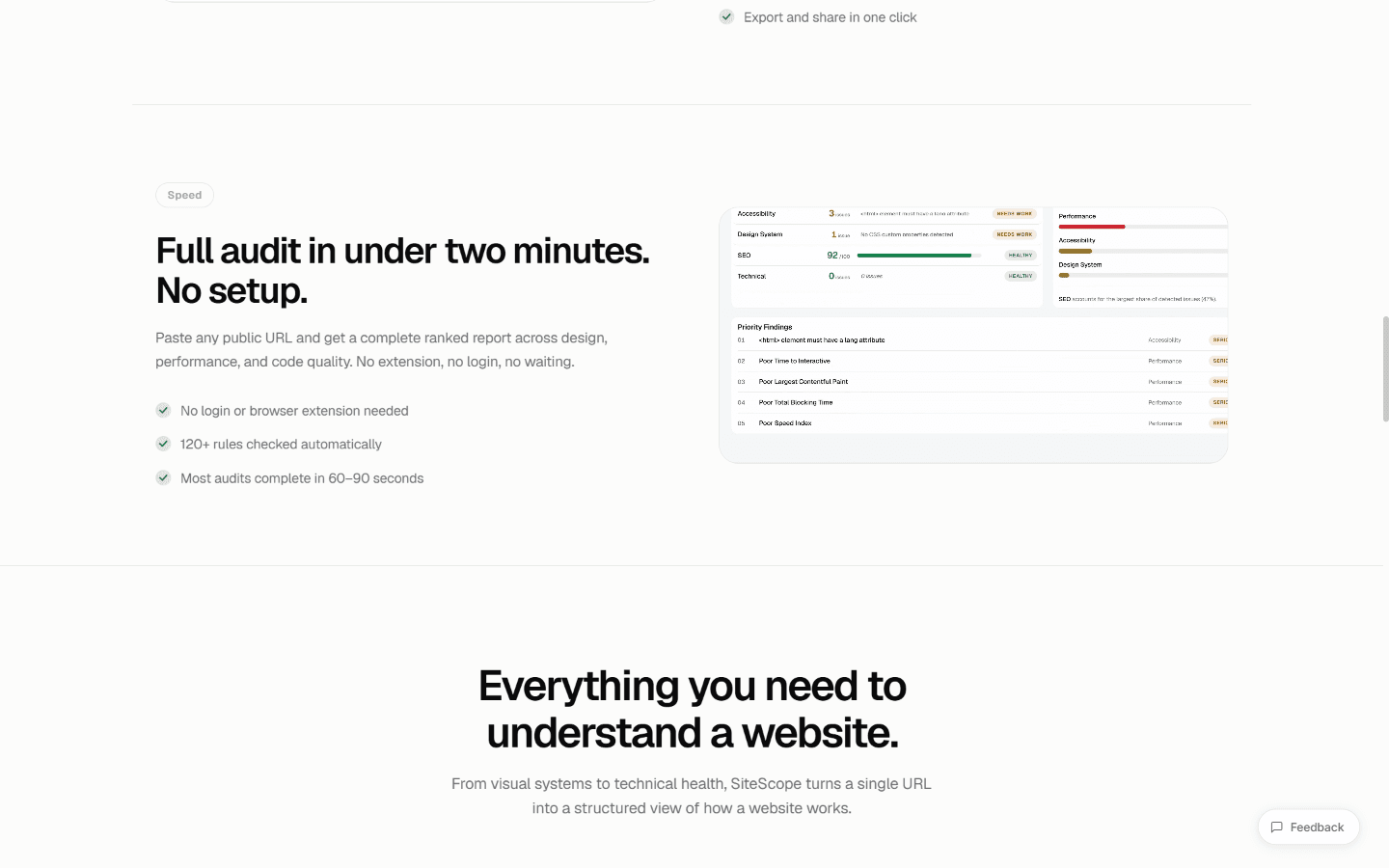
SiteScope is a free website audit tool. You paste a URL. It comes back in seconds with a full report - design issues, performance scores, accessibility problems, SEO gaps, and code quality findings all in one place.
No account needed. No setup. Just a link and a result.
I built this because I was tired of opening five different tools just to check one website. Lighthouse for speed, axe for accessibility, a manual eye test for design. None of them talked to each other. None gave you a single picture of the whole thing.
SiteScope does that.
My Role
UI/UX designer. Product designer. Vibe coder with Claude.
I designed the full product - from the first idea to the final deployed website. Then I built it using Claude as my coding partner. I designed everything in my head and in Figma, and Claude helped me turn those designs into real code.
Timeline
Two weeks from first idea to live product.
The Problem
Website quality checks are fragmented. Developers run Lighthouse. Designers do a manual review. SEO people use their own tools. Nobody has one place that gives them everything.
And most audit tools feel like they were built for enterprise teams with time and money. Not for a freelancer, a small team, or someone who just wants a quick honest answer about their site.
The problem was: no tool exists that gives a full picture, fast, for free, to anyone.
Initial Observations
When I looked at the existing tools, a few things stood out.
PageSpeed Insights only gives you performance. Nothing about design or accessibility in a way that is actionable. Google Search Console is slow to set up and only shows SEO over time. Lighthouse is buried inside Chrome DevTools - most non-developers never even find it. Wave is for accessibility only. All of them require you to already know what you are looking for.
None of them have a good UI. They look like developer tools from 2015. They were not built for designers or founders or small business owners. They were built for technical people who already understand what the numbers mean.
I wanted to build something that gives you the full picture and explains what it means.
Pain Points
- Too many tools for one job. You open five tabs to get one answer.
- Results that need translation. A score of 73 means nothing unless you know what it means.
- No prioritization. You get a list of 40 issues with no sense of which ones actually matter.
- No design feedback. Every tool measures code and performance. None of them actually look at your design.
- Slow setup. Most tools want an account, a project, a tag on your site. That friction stops people before they even start.
How might we give anyone a full website health report in under 30 seconds, with zero setup?
Market Research
I looked at the competitive landscape across three categories.
- Professional audit platforms - Semrush, Ahrefs, Sitebulb. Powerful but expensive and built for agencies. Starting at $100 per month. Overkill for most people.
- Developer-focused tools - Lighthouse, PageSpeed Insights, GTmetrix. Free but technical. They give you data without context. You need to already understand the web to use them.
- Design-focused tools - Screaming Frog, Wave, Siteimprove. Each covers one category. None covers all of them.
The gap I found: there is no free, fast, all-in-one tool built for someone who is not a developer. That is the space SiteScope fills.
UX Research and Becoming My Users
I am the user.
I have used all of these tools. I have felt the friction. I have spent time translating Lighthouse scores for clients who just wanted to know if their site was good or not.
I thought about three types of people who would use this.
- The freelancer who builds sites for clients and needs to show their work. They want a report they can screenshot and send.
- The founder who built their own site and wants to know if it is working. They are not a developer. They need plain English.
- The developer who wants a quick pre-launch check before shipping. They know what the numbers mean but want them all in one place.
All three need the same thing - fast, clear, and complete. That guided every decision I made.
Competitor Research
I looked at four main competitors in depth.
- PageSpeed Insights. Good at performance. Terrible at everything else. Very technical output. No design feedback at all.
- Wave. Great at accessibility. Nothing else. Old UI that has not changed in years.
- Semrush Site Audit. Does everything but costs money and takes time to set up. Built for power users.
- Lighthouse CLI. The most powerful of all of them. But it lives in a terminal and outputs JSON. Not for regular people.
My conclusion: the market has two extremes. Simple but shallow, or deep but complicated. I wanted the middle. Deep but simple.
Design System
Before I touched any screens, I defined the visual system.
- Colors: one blue accent (#3A81FF) on a near-white background. Text in three weights of gray - primary, secondary, muted. A clean border color for dividers. The whole palette has maybe six values total.
- Typography: Geist Sans for all headings and interface text. Inter for supporting body copy. Both are clean, modern, and readable at any size. No decorative fonts.
- Spacing: a consistent scale of 4, 8, 12, 16, 24, 32, 48, 64, 100 pixels. Everything aligns to this scale.
- Components: buttons, input fields, badges, cards, section wrappers. All defined before the pages were designed so the whole product feels like one thing.
The design system is not complex. It is consistent. That is what matters.
Design Process
I started with the landing page because that is the first thing anyone sees. It had to answer three questions immediately: what is this, how does it work, and why should I trust it.
I sketched the structure. Hero with a URL input. How It Works with three steps. Features section. Testimonials. Footer.
The hero needed to feel fast. The animation of results appearing in the demo window was designed to show the product working before you even use it. You see the scan happening and you already understand what you are going to get.
The audit report page came second. This was the harder design problem. You have many different categories of data - performance, accessibility, SEO, design, code quality. How do you present all of that without overwhelming the user?
I solved it with tabs. Each category gets its own tab. The overview tab gives you the full picture at once. You scan it and immediately know which areas need attention. Then you click into a tab to go deep.
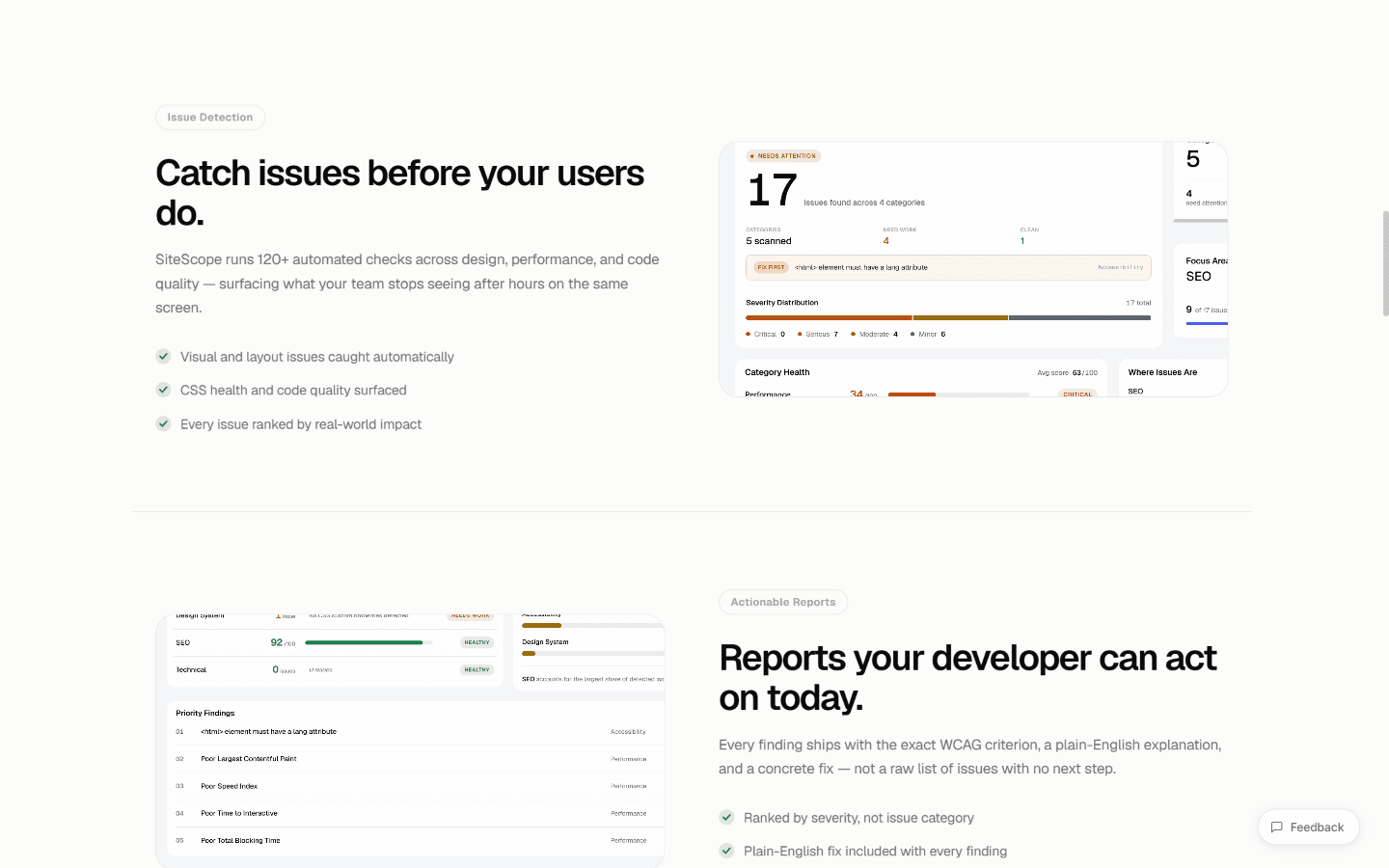
Every finding is a card with a title, a severity badge, a plain English explanation, and a suggested fix. Not just the problem. The solution.

Tools Used and What Each Does
- Figma - visual design tool. I used it to design the layouts, components, and screens before writing any code.
- Next.js - the frontend framework. It handles the pages, routing, and server-side rendering of the web app.
- React - the JavaScript library that Next.js runs on. Every button, card, and section is a React component.
- Tailwind CSS - utility CSS framework for styling. Used in some parts. The rest uses custom CSS classes in globals.css.
- Playwright - a browser automation library. The backend uses it to open a real Chrome browser, visit the website being audited, take a screenshot, collect HTML, and extract styles and network data.
- Lighthouse - Google's open-source performance tool. SiteScope runs it programmatically to score performance, SEO, and best practices.
- axe-core - the industry standard accessibility testing library. Used to find and categorize accessibility violations.
- FastAPI - the Python web framework that powers the backend. It receives the URL, runs all the analyzers, and returns the results.
- Supabase - the database. Stores every audit report so users can come back to previous results.
- GitHub - version control. All code lives here. Auto-deploys when I push.
- Vercel - hosts the frontend. Fast global CDN. Zero configuration for Next.js apps.
- Render - hosts the backend FastAPI server. Free tier has 512MB RAM which caused memory issues with concurrent Playwright browsers - addressed with memory optimizations.
The Full Process - From Idea to Live Product
This is the real story of how it got built. Step by step.
Step 1: First Idea
I was doing a website review for a client. I had five browser tabs open - Lighthouse, Wave, a manual design check, an SEO tool, and a link checker. I thought: why is this not one thing? That was the idea.
Step 2: Define the Concept
I spent one day writing down what the product does in one sentence. One URL in. One report out. Everything you need to know about a website in under 30 seconds. That sentence guided every decision after it.
Step 3: Market Research
Spent two days looking at existing tools. Figured out the gap - nothing free, fast, and all-in-one existed for non-developers. Confirmed the idea was worth building.
Step 4: UX Research
No formal user interviews. I was the user. I thought about three personas - freelancer, founder, developer. Mapped their needs. Defined what fast, clear, and complete meant for each of them.
Step 5: Design System
Before any screens. Defined the color palette, typography, spacing scale, and component library. Six color values, two fonts, one spacing scale. This is what makes the whole product feel consistent.
Step 6: Figma Design
Designed every screen in Figma. Landing page first, then the report page, then the history page, then the compare feature. Tested layouts, checked spacing, made sure every page answered the user's question clearly.
Step 7: Give It to Claude
I handed the Figma designs to Claude with context about what each section does and how it should behave. Claude wrote the React components, the CSS, the page routing, and the API connections.
Step 8: Frontend Build
Claude built the frontend using Next.js and React. Each section of the landing page is its own component - Hero, HowItWorks, Features, Testimonials, Footer. The report page has its own component tree - ReportShell, tabs for each audit category, individual cards for each finding. Responsive breakpoints for mobile, tablet, and desktop. Animations for scroll reveals. The URL input form connects to the backend API.
Step 9: Backend Build
Claude built the backend using FastAPI in Python. The backend is the hard part. When a URL comes in, the server does many things at once. It launches a real Playwright browser to visit the page, takes a screenshot, collects HTML and computed styles. It runs Lighthouse for performance scores. It runs axe-core for accessibility. It checks SEO metadata. It analyzes the design system - colors, typography, spacing. It checks links. It checks responsiveness at multiple viewport sizes. It checks for dark mode support. All of this gets assembled into a structured report and saved to Supabase.
Step 10: Connect Frontend to Backend
The frontend sends POST requests to the FastAPI backend. The backend processes the URL and returns the report JSON. The frontend receives it and renders the report page. The NEXT_PUBLIC_API_URL environment variable points to the Render deployment.
Step 11: GitHub
All code pushed to a GitHub repository. One branch - main. Every push triggers an auto-deploy.
Step 12: Vercel
The frontend deploys automatically on Vercel when I push to GitHub. Takes about 60 seconds. The live site is updated instantly.
Step 13: Render
The backend deploys on Render. Free tier web service. Auto-deploys from GitHub. The service runs Python with FastAPI, Playwright, and Lighthouse. Memory was a challenge on the free tier - addressed with Chrome memory flags and sequential rather than parallel browser instances.
Frontend Process - How It Was Built
The frontend is a Next.js 14 app using the App Router.
The landing page is a single page with sections as components. Each component is a React file that handles its own styles and logic. The reveal animations use an IntersectionObserver to trigger when you scroll past each section.
The report page is the complex part. It receives the audit data and routes it into tab-specific views. Each tab - Overview, Performance, Design, Content and SEO, Accessibility, Experience - gets its own component. Each component knows how to read its slice of the report data and render it.
Custom CSS lives in globals.css. No Tailwind for the main product interface - custom classes like shell, rep-tile, rep-bento. This gives precise control over the design without utility class noise.
The URL input on the homepage uses React state and a fetch call. When you submit a URL, it sends a POST to the backend, shows a loading state, then navigates to the report page with the results.
Backend Process - How It Was Built
The backend is a FastAPI Python server.
When a request comes in, the scan pipeline starts. It runs in phases.
- Phase 1: Playwright captures the page. A real Chrome browser visits the URL, waits for the page to fully load, takes a screenshot, collects all the HTML, captures computed CSS styles for up to 150 elements, records all network requests, and closes.
- Phase 2: Parallel analyzers run. Lighthouse scores performance. The accessibility engine finds violations. The SEO analyzer checks metadata and structure. The link checker finds broken links.
- Phase 3: Synchronous analyzers process the captured data. The design system analyzer looks at colors, fonts, spacing from the computed styles. The CSS health analyzer checks for inline styles and specificity problems. The image analyzer checks for missing alt text and format issues. The animation analyzer checks for reduced motion support.
- Phase 3b: Sequential Playwright passes. The responsive checker opens the page at mobile, tablet, and desktop widths. The dark mode checker looks for dark mode CSS support. These run one at a time to avoid running out of memory.
- Phase 4: Everything gets assembled into a single report object. Saved to Supabase. Returned to the frontend as JSON.
UX Rules Used
These are the principles that guided every design decision.
- Progressive disclosure. Show the summary first. Let users go deeper on what they care about. That is why the report has an overview tab before the detail tabs.
- Plain English over technical jargon. Every finding explains the problem in a sentence anyone can understand. Not error codes. Not developer speak.
- Action over observation. Every finding comes with a suggested fix. Not just what is wrong. What to do about it.
- Visual hierarchy through severity. Critical issues are red. Serious issues are orange. Moderate are yellow. Minor are gray. Your eye goes to the important things first.
- Zero friction entry. No account. No setup. Just a URL. Reducing the barrier to first use was the most important UX decision in the whole product.
- Speed as a feature. The report loads in under 30 seconds. That is a product promise. It changes how people use it - you run it on every site you touch, not just once before launch.
Page-by-Page Breakdown
- Landing Page - Its job is to convert a visitor to a user. The hero gets you to paste a URL within five seconds. Everything below it - how it works, features, testimonials - exists to handle objections and build trust.
- Report Page - The core product. Six tabs. Each gives you a different lens on the website. The Overview tab is designed to be the one most people read. The detail tabs are for people who want to go deep.
- History Page - Every scan you run is saved. You can come back and compare your site over time. See if you are getting better.
- Compare Page - Run two sites side by side. Useful for comparing against a competitor or checking a redesign against the old version.
- Privacy and Terms Pages - Built so the product feels like a real product. Shows it was thought through. Builds trust.
UX Decisions Made
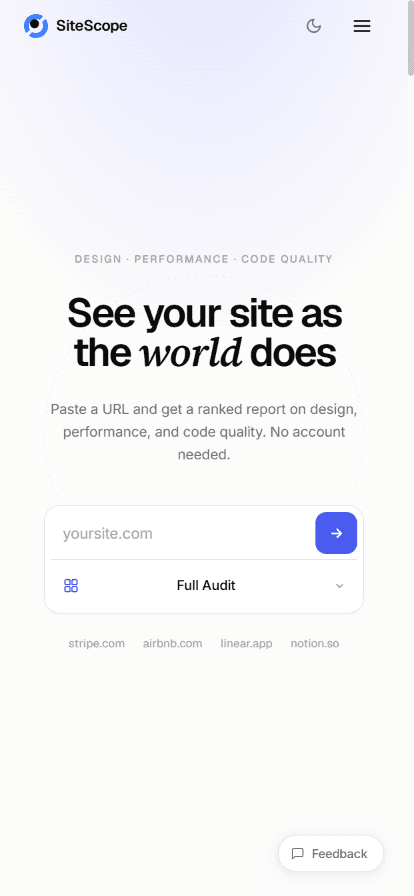
- The URL input is the largest element on the page. Nothing competes with it above the fold. That is intentional. Your one job when you land is to paste a URL.
- The audit mode selector - Design, Developer, SEO, Accessibility, Full - was added because different users want different depth. A designer does not care about Lighthouse performance scores. A developer does not need the full design system analysis. Modes make the tool relevant to each person.
- The report tabs are ordered by what most people care about first. Overview gives the big picture. Then Performance because that is what most people ask about. Then Design, then Content and SEO, then Accessibility, then Experience.
- Every finding card has a chevron that expands it. The collapsed state shows the title and severity. You expand to see the full explanation and fix. This prevents the report from feeling overwhelming.
Color System and Visual Decisions
- The product uses one accent color: #3A81FF. Electric blue. It appears on the logo, the primary button, the active tab indicator, the badge for SiteScope's own brand elements in the design system analyzer. One color. Used with intention.
- The background is #FAFAFA - almost white, not pure white. Pure white feels harsh. This is warmer and easier to read for a long audit report.
- Text comes in three weights. #18181B for primary text - near black, not pure black. #52525B for secondary text - descriptions and supporting copy. #A1A1AA for muted text - labels, metadata, less important information.
- Severity colors are semantic. Red for critical. Orange for serious. Yellow for moderate. Gray for minor. These are consistent across the entire product so your eye learns them quickly.
- The report cards use a subtle border and a very light raised background to lift them off the page without heavy shadows.
Final Designs
The landing page has a clean hero, a live product demo window that animates, an honest how-it-works section in three steps, a detailed features grid, three testimonials with real avatars, and a minimal footer.
The report page is a full-screen dashboard with a fixed navigation rail on the left, tab headers at the top, and scrollable content in the main area. Each tab has a different layout appropriate to its data - the overview is a bento grid, the performance tab is score-focused, the design tab shows swatches and type specimens.
The mobile version collapses all of this into a single column with a horizontal tab bar that scrolls. The report is fully usable on a phone.
Outcomes
- The product is live. Anyone can use it.
- One-click audit from a URL. No account required.
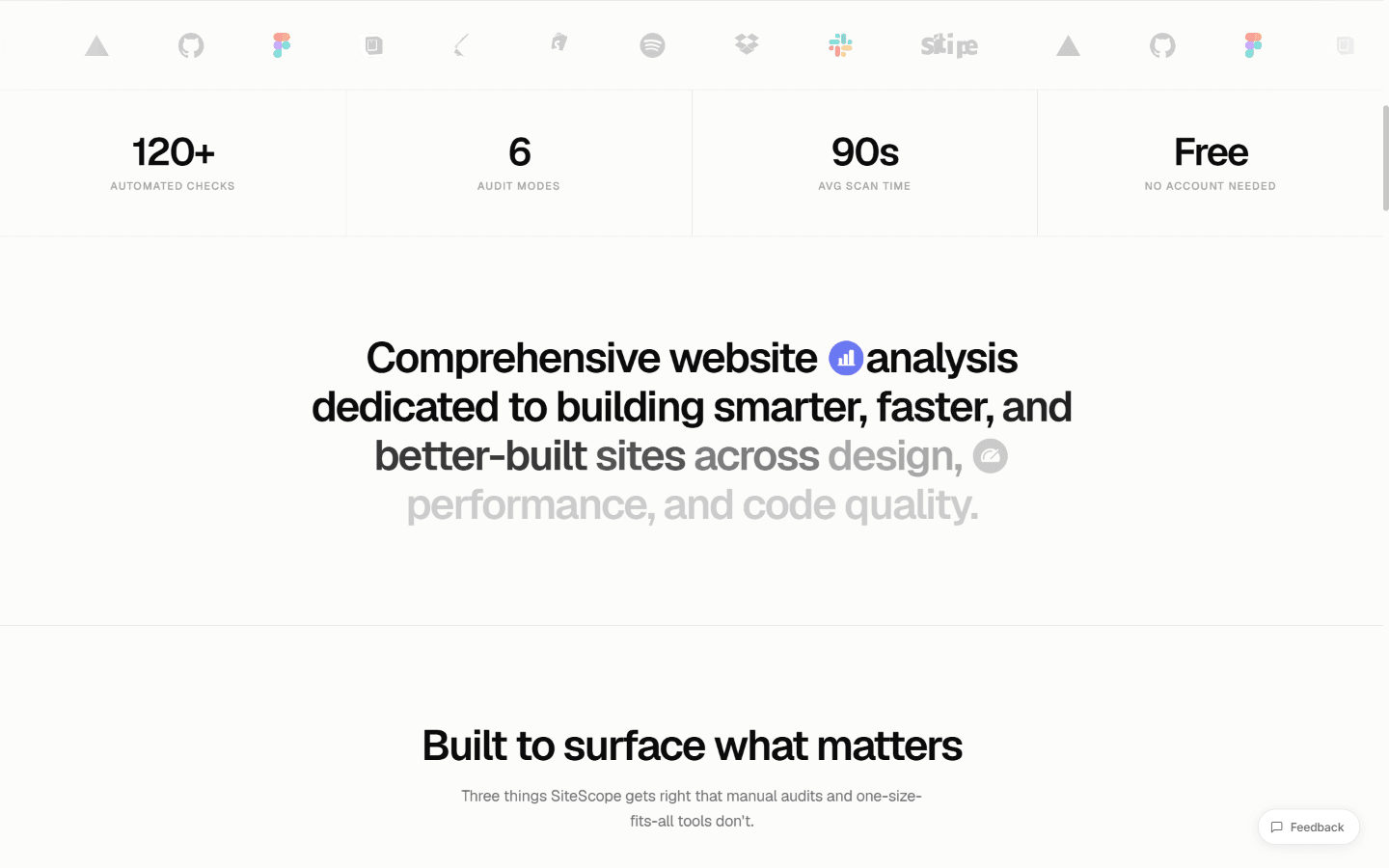
- Six audit modes. Seventeen different analyzers running behind the scenes.
- Reports saved to Supabase so you can build a history.
- Side-by-side competitor comparison.
- The product was designed and built in two weeks by one person with Claude.
What I'd Do Differently
- Build the shareable report link from day one. The single biggest viral feature I missed. A report you can send to a client or post on Twitter is free marketing. I did not build it and I should have.
- Do user testing earlier. I made assumptions about what non-developers need. Some of those assumptions were right. Some were not. Real user sessions would have caught the gaps faster.
- Plan for memory constraints from the start. The backend running out of memory on Render's free tier was a problem I hit at deployment. If I had thought about it during architecture, I would have built the sequential browser execution pattern from the beginning instead of adding it as a fix.
- Build the email report export earlier. Users want to save and share their audit results. A PDF or email report would have added real value and I kept pushing it to later.
Reflection
Two things I learned from this project.
The first is that constraints make you faster. Two weeks, one person, free hosting. Those constraints forced every decision to be simple. No overthinking, no endless iteration. Build it, ship it, improve it.
The second is that Claude changes what one person can build. I am a designer. I understand UX, layout, systems. I am not a backend engineer. Without Claude I would have stopped at the frontend. The backend - Playwright, Lighthouse, axe-core, FastAPI, all of it - I could not have built that alone in two weeks. Claude made the full product possible.
What I Learned
- You do not need a big team to build a real product. You need a clear problem, a clear solution, and the right tools.
- The hardest part of building a tool like this is not the code. It is making complex information feel simple. That is a design problem, not a technical one.
- Speed is a feature. Not just performance speed. Decision speed. Build speed. Iteration speed. The faster you move, the faster you learn what matters.